


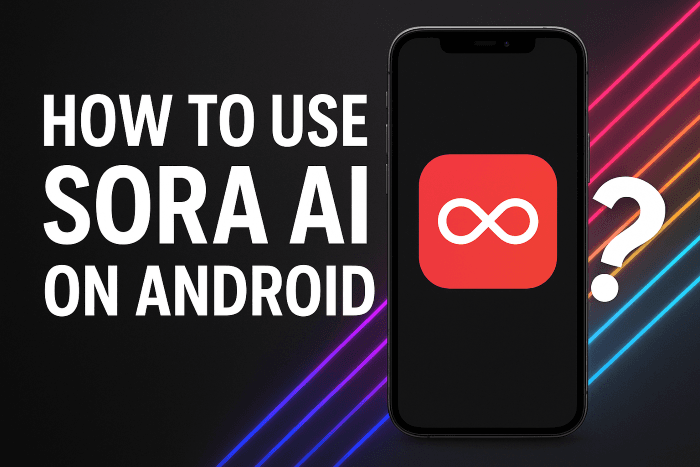
How to Use Sora AI on Android: Step-by-Step Guide
If you’ve been curious about how to use Sora AI on Android, you’re in the right place. In this beginner’s guide I walk you through everything, from setup to sharing your first video, so you can turn a simple idea into a creative video with ease. Whether you’re a content creator, marketer, or simply curious about AI video tools, this guide will help you get started confidently.
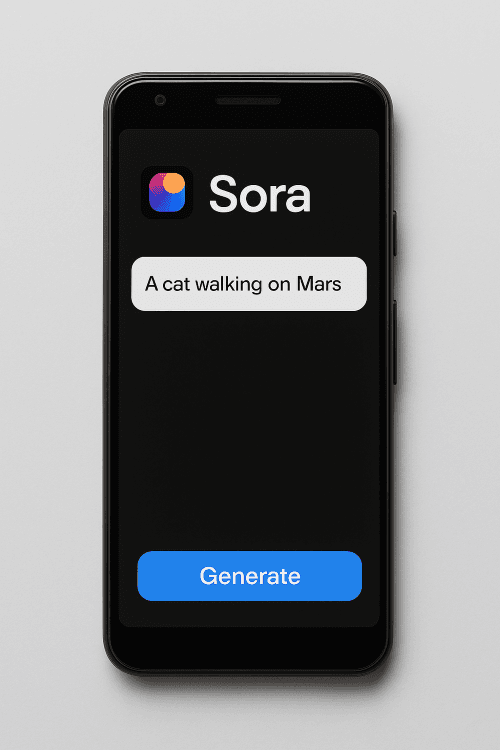
What is Sora AI and why Android matters
What is Sora AI?
Sora AI is a text-to-video generator developed by OpenAI that takes natural language prompts (and sometimes images) and creates short video clips.It supports different aspect ratios and resolutions, making it accessible for mobile devices.
Why using it on Android is exciting
Using Sora AI on Android means you can create and share AI-generated videos wherever you are, on your phone. With access via Google Play (in supported regions) the tool has become far more accessible. Android Central
Plus, having the mobile experience means experimentation becomes easier: I tried generating a video during my commute (yes, in a safe place) and it was surprisingly smooth.
Before you begin: what you’ll need
Check device compatibility
Make sure your Android device is updated and has enough free storage. AI-video generation can demand memory and processing.
Region & invite awareness
Sora AI (or the version of it for Android) may only be available in certain countries or via invite during early rollout. Android Central
Internet & patience
High-quality video generation takes data and time. If you’re on a slower connection you may want to plan for longer wait times.
Set expectations
As someone who’s tried Sora myself, I found that the first few creations might have weird artifacts or transitions. That’s normal. I refined my prompts over time and got much better output.
Step-by-step: How to use Sora AI on Android
Install and set up
- Go to the Google Play Store and search for “Sora AI” (or check if available in your country).
- Download and install the app.
- Sign in or create an account if required (often linked with OpenAI/Microsoft credentials).
- Accept permissions needed (camera/mic/storage) if you plan to upload images or videos.
Create your first video
Choose your prompt style
- Text prompt only: e.g., “A fearless astronaut exploring a neon-lit alien planet.”
- Text + image input (if supported): for example you upload a photo and ask “Animate this person dancing in a sci-fi city.”
Select style and settings
Choose things like aspect ratio (vertical 9:16, square 1:1, or landscape 16:9), resolution quality, and maybe a theme (cinematic, cartoon, photorealistic).
Generate and wait
Tap the generate button. Once it processes, you will see your video appear in your workspace. As I tested, the first attempt took around a few minutes, and the output had some odd movement, so be patient and tweak.
Review and refine
Watch your video. Maybe it does not match exactly what you imagined. In my case, a character’s hand movement looked unnatural, so I edited the prompt to clarify “slow motion, smooth movements”.
Export and share
Once happy, export the video and share on social media, WhatsApp, or save to your gallery.
Tips & best practices for better results
Prompt engineering
- Be clear and descriptive: “A red vintage car driving along the coast at sunset” beats “car by sea”.
- Use action words: moving, swirling, zooming.
- Specify style: “in the style of a 1960s film”, or “anime style”.
- If upload image, mention “use this photo as the protagonist”.
Manage expectations
- Short duration videos (5-20 seconds) tend to have better quality. OpenAI Help Center
- If you see odd artifacts (floating limbs, weird transitions), try simplifying prompt or use fewer subjects.
Ethical & copyright considerations
As I experimented, I realised the tool may generate characters that resemble real people or copyrighted settings. It’s wise to use your own imagery or avoid impersonations without proper rights. Wikipedia
Save & version your work
Keep older versions of your prompts and videos. I had one version I liked better after tweaking, so saving your progress helps.
Use social features (if any)
If the app supports sharing, remixing, or avatars/cameos (upload your face), explore responsibly. It’s fun. But always keep privacy in mind.
My real-world example
When I first tried Sora AI on my Android phone, I typed: “A curious cat exploring a futuristic city at dawn, photorealistic, 9:16 vertical”. The result was interesting, the city looked amazing, but the cat’s movement was jerky. I then refined the prompt: “A sleek cat walking slowly through neon city streets at dawn, smooth slow-motion, vertical video”. That version looked far more polished.
What I learned: small tweaks in wording made a big difference. Also, the upload time and processing improved once I switched to WiFi.
Common questions beginners ask
Do I need to pay to use Sora AI on Android?
It depends: Some access may be free with limits, others may require subscription or invite. TechRadar
What if my prompt fails or video is weird?
Try simplifying the prompt, reducing elements, or changing style. Also verify your internet connectivity and device resources.
Can I use the video commercially?
Check the terms of service in the app. Also, if the video resembles a known person or copyrighted setting, you may need additional rights.
Why is it taking too long?
Mobile devices may take longer than desktop/cloud. Also, generation queue might be high. Switching network or trying later may help.
What devices/resolution are supported?
According to OpenAI, Sora supports up to 1080p resolution and various aspect ratios. OpenAI
What’s next for you?
- Try creating three different videos this week: one fun, one professional (for your business or brand), one experimental.
- Join a community or forum for Sora to share and learn from others’ prompts.
- Keep an eye on updates,features like longer videos, higher resolution and more styles are likely coming.
Conclusion
In summary, using Sora AI on Android opens up a world of creative possibilities. With a bit of experimentation and the right prompts you can generate amazing videos from your phone. I’ve walked you through setup, prompt strategy, real-world experience, and best practices. Now it’s your turn to try.
If you found this guide helpful, please comment below with your first video idea, share it with fellow creators, or visit FixMyAI.in for more tutorials and updates. Happy creating!